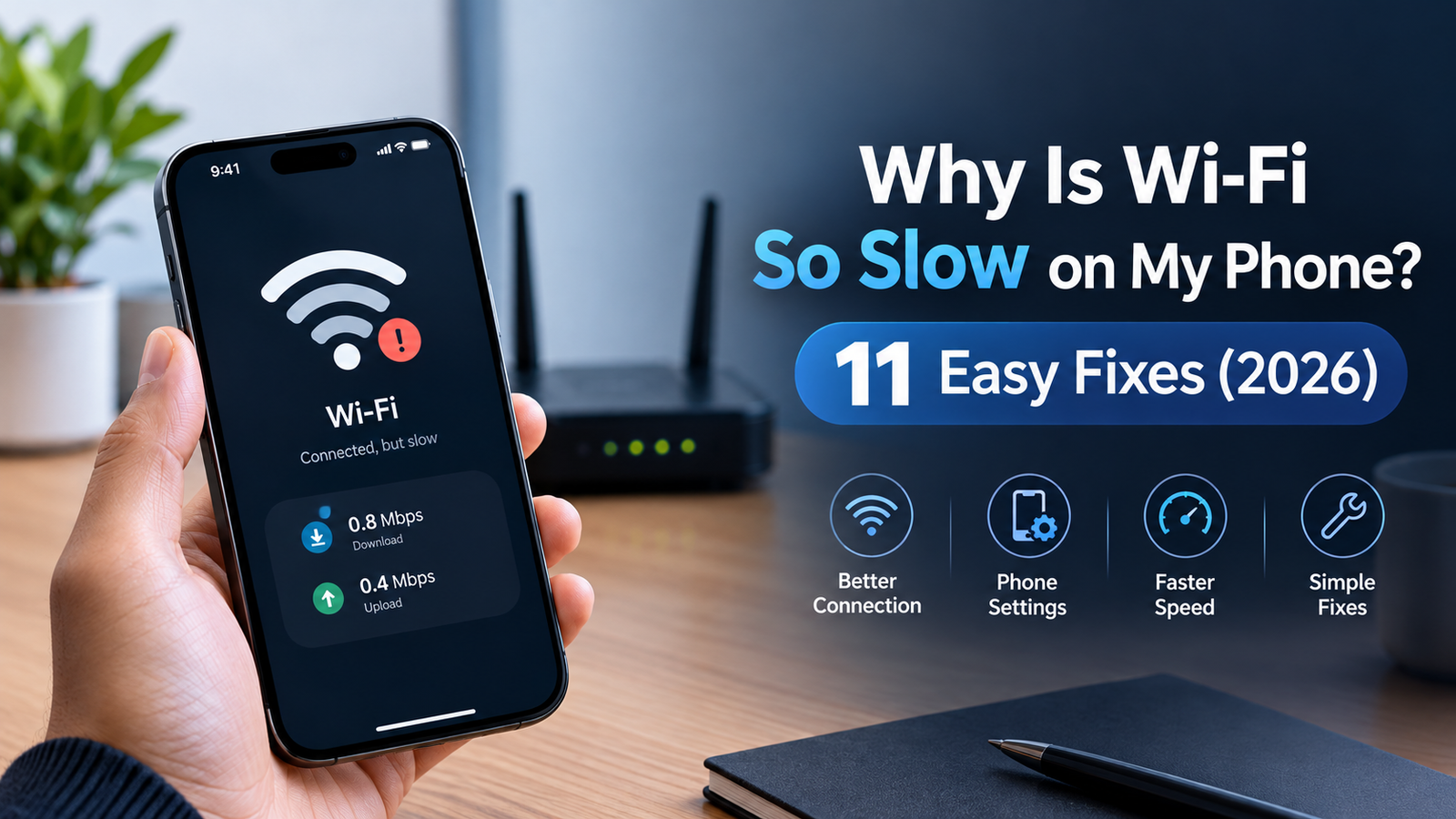
It happens to almost everyone. A video freezes halfway through, a web page crawls, a photo refuses to upload, and the Wi-Fi icon still shows full bars. So, why is wifi so slow on my phone when everything else in the house seems fine? The answer is rarely a single dramatic failure. More often, it is a small pile of everyday issues: a crowded wireless channel, a tired router, a background app hogging bandwidth, or a setting buried deep inside the phone.
The good news is that most of these problems can be sorted out in a few minutes, without any technical background and without calling the internet provider. This guide walks through the most common causes, then moves into 11 practical fixes that work for homes, apartments, and small offices across the United States. Each fix is explained in plain language, with separate notes for Android and iPhone owners where the steps differ.
Quick Answer: What Usually Causes Slow Wi-Fi on a Phone?
For readers in a hurry, here is the short version. Slow wireless speeds on a phone usually come from one of these sources:
- Weak signal, caused by distance, walls, floors, or appliances that interfere with the router
- Network congestion, when too many devices or neighbors share the same channel
- The wrong Wi-Fi band, such as 2.4 GHz when a faster band is available
- Outdated software, on either the phone or the router
- Background activity, like cloud backups, app updates, and auto-playing video
- Phone settings, including VPNs, data savers, and power-saving modes
- Problems outside the home, such as an overloaded internet plan or a provider outage
The rest of this article explains how to figure out which one applies and how to fix it.
Why Is Wi-Fi So Slow on My Phone? The Main Reasons Explained
Before jumping into fixes, it helps to understand what is actually going on. Wi-Fi is a radio connection between the phone and the router. Everything the phone loads, from a social feed to a streaming show, travels through that invisible link first, then through the internet plan, and finally out to the wider web. A slowdown can happen at any of those three stages.
The Wireless Link Between Phone and Router
Radio signals get weaker with distance and lose strength when passing through thick walls, metal, mirrors, concrete, and even water pipes or fish tanks. A phone sitting two rooms away from the router may show a decent signal but still struggle to maintain a fast data rate. Signal bars only show strength, not quality, which is why a phone can display full bars while pages load slowly.
The Router and the Home Network
Routers have limited capacity. A modern household may run a dozen or more connected devices at once: phones, laptops, smart TVs, game consoles, doorbells, speakers, and thermostats. When several of them stream or download at the same time, each one gets a smaller slice of the available speed. Older routers also struggle with newer phones, which can cap speeds well below what the internet plan provides.
The Internet Plan and the Provider
Even a perfect wireless link cannot beat the speed of the plan coming into the house. A household paying for a basic tier will see limits when several people stream in high definition. Evening hours, when entire neighborhoods go online, can also slow cable connections because the local network is shared.
The Phone Itself
Finally, the phone has a say. Old software, a full storage drive, a corrupted network profile, aggressive battery savers, and background syncing can all drag down real-world speeds. Many cases of a phone connected to Wi-Fi but internet is slow come down to something on the phone rather than the router.
How to Tell Where the Problem Is Before Trying Fixes
A two-minute test can save a lot of guesswork. Following these steps points toward the right fix.
Run a Speed Test on the Phone
A free speed-test app or website shows download speed, upload speed, and latency (often labeled ping). Run it while standing next to the router, then again in the room where the slowdown happens. If speeds are fast near the router but poor farther away, the issue is signal range. If speeds are poor everywhere, the cause is more likely the router, the plan, or the phone’s settings.
Compare With Another Device
Testing a second device on the same network is one of the most useful troubleshooting steps. If a laptop or tablet is also slow, the problem sits with the router or the provider. If only the phone is slow, attention should shift to the phone and its settings.
Compare Wi-Fi With Mobile Data
Switching Wi-Fi off briefly and testing on cellular data adds another clue. If mobile data is faster than Wi-Fi, the home network is the weak link. If both are slow, the phone or a specific app may be the culprit.
What Counts as a Good Speed?
For everyday use, these rough targets are widely used:
- Browsing and social media: 5 to 10 Mbps per device
- HD video streaming: about 5 to 10 Mbps per stream
- 4K video streaming: 25 Mbps or more per stream
- Video calls: 3 to 8 Mbps, with low latency
- Online mobile gaming: 10 Mbps or more, with latency under 50 ms
If the numbers fall well below these figures, one of the fixes below should help.
11 Easy Fixes for Slow Wi-Fi on a Phone
These fixes are arranged from the quickest and simplest to the more involved. Most people find the culprit within the first five or six. Anyone wondering how to fix slow Wi-Fi on phone can work through the list in order and re-run a speed test after each step.
Fix 1: Restart the Phone and the Router
It sounds too simple to work, but restarting clears temporary glitches, frees up memory, and forces the phone and router to build a fresh connection. Routers in particular can develop memory leaks and overheating issues after weeks of continuous operation.
What to do:
- Restart the phone fully (not just lock the screen).
- Unplug the router and modem from power.
- Wait about 30 seconds so the internal components fully reset.
- Plug the modem in first, wait until its lights settle, then plug in the router.
- Reconnect the phone and run a speed test.
A monthly router restart is a harmless habit, and some models even offer a scheduled automatic reboot in their settings.
Fix 2: Toggle Airplane Mode and Re-Join the Network
If a restart did not help, the saved network profile may be corrupted. Turning Airplane Mode on for ten seconds and off again refreshes all the phone’s radios. If that does not do it, forgetting the network and reconnecting often clears stubborn problems.
On Android: Open Settings, tap Network & internet (or Connections), choose Wi-Fi, tap the network name, then select Forget. Reconnect by entering the password again.
On iPhone: Open Settings, tap Wi-Fi, tap the small information icon beside the network, then choose Forget This Network. Reconnect and re-enter the password.
Keep the Wi-Fi password handy before doing this, since the phone will ask for it again.
Fix 3: Move Closer and Improve Router Placement
Physical placement matters more than most people realize. A router tucked inside a cabinet, behind a TV, or in a basement corner sends a weaker signal to the rest of the home.
Simple placement tips:
- Place the router in a central, open location, ideally on a shelf rather than the floor
- Keep it away from microwaves, cordless phone bases, baby monitors, and large metal objects
- Point any adjustable antennas in different directions (one vertical, one horizontal) to cover more space
- Avoid placing the router near thick masonry walls or aquariums
In larger US homes, especially two-story houses, a single router often cannot cover everything. A mesh Wi-Fi system or a simple range extender can fill dead zones. Mesh systems generally perform better because they create a single network name and hand devices off between nodes smoothly.
Fix 4: Switch to a Faster Wi-Fi Band (5 GHz or 6 GHz)
Most modern routers broadcast on more than one band, and the choice has a big effect on speed.
- 2.4 GHz: Longer range and better wall penetration, but slower and more crowded. Microwaves, Bluetooth devices, and neighbors’ networks all compete here.
- 5 GHz: Much faster and less crowded, but with a shorter range.
- 6 GHz (Wi-Fi 6E and Wi-Fi 7): The fastest and cleanest option, though range is shorter still and only newer phones and routers support it.
Phones that are stuck on 2.4 GHz will often feel sluggish in busy apartment buildings. Many routers combine all bands under a single name, which lets the phone choose automatically but does not always choose well. Giving each band its own name (for example, HomeNet and HomeNet-5G) lets the phone be connected to the faster one on purpose.
This is also one of the best answers to how to make Wi-Fi faster on phone: stay on 5 GHz whenever the signal allows it, and use 2.4 GHz only in far corners of the house.
Fix 5: Update the Phone’s Software
Software updates often include fixes for Wi-Fi drivers, security patches, and performance improvements. A phone running an older version may have bugs that affect connectivity.
On Android: Open Settings, scroll to System (or About phone), and check for system updates. Also open the Play Store and update apps.
On iPhone: Open Settings, tap General, then Software Update.
Updates should be done while the phone is charging and connected to a stable network. Phones that no longer receive manufacturer updates, which is common with older budget Android models, can develop lingering network quirks that no setting will fully fix.
Fix 6: Stop Background Apps and Downloads From Hogging Bandwidth
Many cases of a phone connected to Wi-Fi but internet is slow have a simple explanation: something else on the phone is quietly using the connection. Automatic photo backups, large app updates, podcast downloads, cloud storage syncing, and auto-playing videos can all eat up bandwidth.
Common culprits to check:
- Google Photos, iCloud Photos, or other backup services uploading a large library
- App Store or Play Store updates running in the background
- Streaming apps downloading offline content
- Social apps that auto-play video
- Game launchers installing patches
Where to look:
- Android: Settings, Network & internet, then Data usage (or a similar menu) shows which apps use the most data. Background data can be restricted per app.
- iPhone: Settings, then Cellular lists app usage, and Settings, General, Background App Refresh allows background activity to be limited.
Pausing a large upload or download usually brings an immediate improvement for everything else.
Fix 7: Clear Cache and Free Up Storage
A phone with almost no free storage struggles to cache web pages and app data, which makes everything feel slower, including network tasks. Clearing out clutter helps both speed and stability.
Easy steps:
- Delete unused apps, old downloads, and duplicate photos
- Clear browser cache in the browser’s settings
- On Android, clear cache for heavy apps through Settings, Apps, then Storage
- On iPhone, offloading unused apps (in iPhone Storage settings) frees space without deleting their data
Aim to keep at least 10 to 15 percent of storage free.
Fix 8: Turn Off VPNs, Data Savers, and Power-Saving Modes
Several phone features, though useful, can reduce speed.
- VPNs: A VPN adds an extra detour for traffic, and a crowded or distant VPN server can reduce speeds noticeably. Disabling it temporarily is a quick test.
- Low Data Mode (iPhone) and Data Saver (Android): These limit background activity and sometimes reduce video quality.
- Battery saver and Low Power Mode: Both can throttle background processes and, on some devices, limit network performance.
- Private relay or similar privacy features: These reroute traffic and can add delay on certain networks.
If speeds jump after switching one of these off, the feature can stay disabled at home and be turned back on when needed elsewhere.
Fix 9: Change the DNS Server
DNS works like a phone book for the internet, translating website names into addresses. If the default DNS server from the internet provider is slow, pages can take a long time to start loading even when raw speed looks fine. Switching to a well-known public DNS service often makes browsing feel snappier.
Popular options include Google Public DNS (8.8.8.8 and 8.8.4.4) and Cloudflare (1.1.1.1 and 1.0.0.1).
On Android: Many recent versions include a Private DNS setting under Network & internet. Entering a provider host-name there applies it across Wi-Fi and mobile data.
On iPhone: Open Settings, tap Wi-Fi, tap the information icon beside the network, choose Configure DNS, switch it to Manual, and add the new servers.
Changing DNS on the router itself applies the improvement to every device in the home at once.
Fix 10: Update the Router and Change the Wi-Fi Channel
Router firmware is the built-in software that runs the device. Manufacturers release updates to patch security holes and improve stability and speed, but many routers never get updated because nobody checks. Logging into the router’s admin page (the address is usually printed on a sticker on the device) or using the manufacturer’s app makes updating straightforward. Some newer routers update automatically.
Channel congestion is another hidden cause of slow speeds, especially in apartment buildings where dozens of networks overlap. On 2.4 GHz, channels 1, 6, and 11 are the only ones that do not overlap in the United States, so choosing the least busy of these can help. On 5 GHz, there are many more channels available, which gives more room to avoid interference. Most routers can pick a channel automatically, but a manual selection sometimes works better when neighbors are crowding the airwaves. Free Wi-Fi analyzer apps for Android, and the built-in scanning tools in some router apps, show which channels are busiest.
Fix 11: Reduce Network Load or Upgrade the Equipment and Plan
If the earlier fixes did not fully solve the issue, the network may simply be asked to do too much.
Reduce the load:
- Disconnect devices that are not in use
- Schedule big downloads and updates for overnight hours
- Use the router’s quality of service (QoS) feature, if available, to prioritize video calls and streaming
- Move stationary devices like game consoles and desktop PCs to wired Ethernet connections, which frees up wireless capacity
Upgrade when needed:
- A router more than five years old probably lacks modern standards such as Wi-Fi 6 or Wi-Fi 7
- A rented provider modem and router combo may be outdated, and replacing it with a personally owned model can improve performance
- An internet plan under 100 Mbps may be too small for a busy household; many US families now find 300 Mbps to 1 Gbps more comfortable
Before paying for a faster tier, it is smart to contact the provider and ask whether there is a line issue, since a damaged cable or a weak signal at the modem can cause slow speeds that no amount of tweaking will fix.
Slow Wi-Fi on Android Phone: Extra Tips
Android comes in many flavors from different manufacturers, so menu names vary slightly. Still, a few extra tweaks are worth knowing for anyone dealing with slow Wi-Fi on Android phone models.
Check Adaptive Connectivity and Wi-Fi Scanning
Some Android phones include features that automatically switch between Wi-Fi and mobile data to save battery. If this feature misjudges the connection, it can drop the phone onto a weaker network. Reviewing these options under the Wi-Fi or Connections settings and turning off any automatic switching can make performance more predictable.
Disable Battery Optimization for Network Apps
Aggressive battery optimization on some Android brands can put apps to sleep and interrupt connections. Excluding important apps from battery optimization, or switching the phone’s power mode to a standard setting during heavy use, can help.
Check the Wi-Fi Standard Support
Budget Android phones sometimes support only older Wi-Fi standards or only the 2.4 GHz band. If a phone is limited this way, even a top-tier router cannot deliver high speeds to it. Checking the phone’s specifications online confirms what it supports.
Reset Network Settings if Nothing Else Works
Android offers a reset option for Wi-Fi, mobile data, and Bluetooth, usually found under System, then Reset options. It clears saved networks and paired devices, so passwords will need to be re-entered, but it often removes deep-seated configuration problems.
Slow Wi-Fi on iPhone: Extra Tips
iPhones are consistent in design, yet they have their own quirks. People dealing with slow Wi-Fi on iPhone can try the following.
Review Private Wi-Fi Address and Limit IP Address Tracking
Privacy features on iPhone occasionally conflict with certain routers or public networks. Turning off Private Wi-Fi Address for a single trusted home network, or toggling Limit IP Address Tracking, can resolve odd connection behavior. Both options sit within the network’s information screen under Wi-Fi settings.
Check Wi-Fi Assist and Low Data Mode
Wi-Fi Assist lets the phone use cellular data when the Wi-Fi signal is weak, which can create confusing behavior. Low Data Mode, meanwhile, trims background tasks. Reviewing both under Cellular and Wi-Fi settings makes it easier to see what the phone is actually doing.
Turn Off iCloud Private Relay Temporarily
For subscribers who use it, iCloud Private Relay routes traffic through additional servers. On some networks it can reduce speed, so switching it off as a test is reasonable.
Reset Network Settings
On iPhone, open Settings, tap General, then Transfer or Reset iPhone, and choose Reset Network Settings. As with Android, saved Wi-Fi passwords, VPN profiles, and cellular settings will be wiped, so it is best saved for stubborn problems.
Wi-Fi Slow on Phone but Fast on Laptop: What Does It Mean?
This scenario confuses many people, and it is quite common. When the Wi-Fi slow on phone but fast on laptop situation appears, the router and internet plan are usually fine. The difference lies somewhere between the two devices.
Different Hardware and Antennas
Laptops typically have larger antennas and more powerful wireless chips than phones, so they can hold a stronger, more stable connection at the same distance. Phones are built to save battery and space, which means weaker radios.
Different Bands and Standards
A laptop may be connected to the 5 GHz band while the phone clings to 2.4 GHz. Likewise, the laptop might support a newer Wi-Fi standard than an older phone does. Checking which network name each device uses is a good first step.
Phone-Specific Settings and Apps
VPNs, data savers, ad blockers, private DNS settings, and background syncing are all more common on phones. A laptop rarely runs as many background services over wireless at once.
Software and Driver Differences
A laptop and a phone receive updates on different schedules. If the phone’s software is a few versions behind, it may lack improvements that the laptop already has.
How to Narrow It Down
- Test both devices side by side in the same spot.
- Make sure both use the same Wi-Fi band.
- Turn off the phone’s VPN and power-saving modes.
- Forget and rejoin the network on the phone.
- Update the phone and, if possible, the router.
If the phone remains slower after all this, a modest speed gap is simply normal, because phones rarely match laptops in raw wireless performance.
Bonus: How to Increase Internet Speed on Phone Without Spending Money
People searching for how to increase internet speed on phone often assume that buying new gear is the only answer. In reality, several free habits make a noticeable difference:
- Pick the right band: Use 5 GHz close to the router and 2.4 GHz only when far away.
- Close unused apps: Apps running video, music, or location services in the background consume bandwidth.
- Use lite versions of apps: Many popular services offer lighter app versions or browser versions that load faster on weak connections.
- Download on Wi-Fi at off-peak times: Large files move faster late at night or early in the morning, when fewer neighbors are online.
- Keep the phone cool and charged: Overheating and extremely low battery can reduce wireless performance.
- Remove the phone case when signal is poor: Thick metal-containing cases can slightly block antennas.
- Reconnect occasionally: Briefly toggling Wi-Fi after moving between rooms forces the phone to pick the strongest access point.
Small habits like these add up, and they cost nothing.
When to Call the Internet Provider
Sometimes, no phone tweak will fix the issue because the cause is outside the household. It is time to contact the provider when:
- Every device in the home is slow, even when wired by Ethernet
- Speed tests regularly come in far below the plan’s advertised speed
- The modem shows warning lights or keeps rebooting itself
- Slowdowns happen at the same time every evening
- The service goes down repeatedly
Before calling, it helps to prepare a few speed-test results with dates and times, and to note which devices were affected. This gives support staff concrete information, and it can speed up getting a technician scheduled. In the United States, customers can also check provider outage pages or social media accounts for area-wide issues.
Common Mistakes That Keep Wi-Fi Slow
A few habits quietly cause repeated problems:
- Ignoring router updates: Outdated firmware can slow performance and weaken security.
- Using an old router with a new plan: An older router may not handle gigabit speeds.
- Hiding the router in a closet: Walls and shelves block signals.
- Relying on cheap extenders: Low-quality extenders can cut speeds in half, since they must receive and rebroadcast the same signal.
- Leaving too many smart devices active: Dozens of connected gadgets can crowd the network.
- Skipping the password: An open or easily guessed network invites freeloaders who use up bandwidth.
Avoiding these mistakes keeps the network healthy over the long run.
Frequently Asked Questions
Why does Wi-Fi show full bars but still load slowly?
Signal bars measure strength, not speed. A strong signal on a crowded channel, or a router that is overloaded or poorly connected to the provider, can still produce slow loading. Checking a speed test gives a more accurate picture.
Is slow Wi-Fi caused by the phone or the router?
Testing another device is the quickest way to find out. If other devices are slow too, the router or provider is the likely cause. If only the phone is slow, the problem is probably in its settings, software, or hardware.
Can a phone case or screen protector affect Wi-Fi?
Occasionally. Cases with metal plates or magnetic rings can interfere slightly with antennas, though the effect is usually small.
Does the time of day affect Wi-Fi speed?
Yes. Evening hours, roughly from 6 p.m. to 10 p.m., are the busiest in most US neighborhoods, and shared cable networks can slow down as more households stream video at the same time.
Will resetting network settings delete personal data?
No. Photos, apps, and messages stay in place. Only saved Wi-Fi networks, Bluetooth pairings, VPN settings, and related network configurations are removed.
Is Wi-Fi 6 or Wi-Fi 7 worth upgrading to?
For busy households with many devices, yes. These newer standards handle multiple devices more efficiently and reduce congestion, though the phone also needs to support the standard to benefit fully.
Final Thoughts
Slow wireless speeds are frustrating, but they are rarely mysterious once the possible causes are laid out. When someone asks why is wifi so slow on my phone, the answer almost always falls into one of a few categories: signal strength, congestion, outdated settings, background activity, or limits in the plan or equipment. Starting with the simple steps, such as restarting, rejoining the network, and moving to a faster band, solves a large share of cases within minutes. If those fall short, updating software, adjusting DNS, tidying router settings, and finally upgrading equipment or the plan cover nearly everything else.
With a bit of patience and a speed test after each change, most phone owners can restore smooth browsing, streaming, and video calls without spending a dime. And if the home network still struggles after every fix, the provider is the next call to make, with test results in hand.


Leave a Reply